ip
Ello User Guide
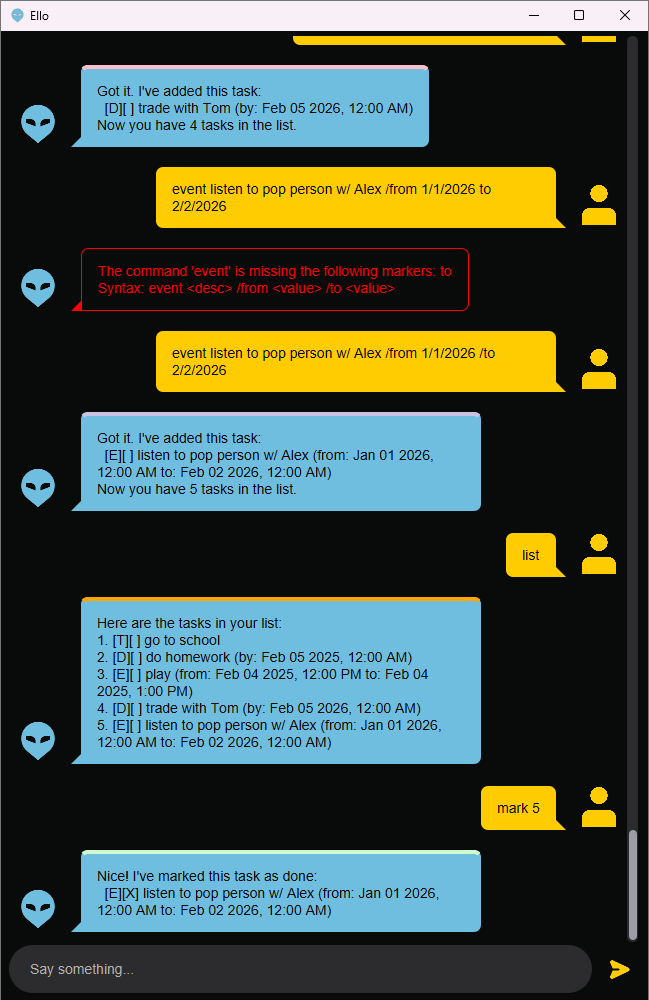
Ello is a task management chatbot to help you organize your tasks efficiently. Whether you’re a student, professional, with Ello, you can easily add, view, and manage your tasks using simple commands.
Quick Start
- Ensure you have Java 17 or above installed.
- Download the latest
.jarfile from here. - Copy the file to an empty folder.
- Open a terminal, navigate
cdto the folder, and run:java -jar ello.jar
Features
Adding a Todo Task: todo
Add a simple task to your list.
Format: todo <description>
Example:
todo Watch CS2103T briefing
Expected output:
Got it. I've added this task:
  [T][ ] Watch CS2103T briefing
Now you have 1 Task in the list.
Adding a Deadline: deadline
Add a task with a specific deadline.
Format: deadline <description> /by <date_time>
Date-time formats supported:
d/M/yyyy HH:mm(e.g., 20/2/2026 16:00)dd/MM/yyyy HH:mm(e.g., 20/02/2026 16:00)yyyy-MM-dd HH:mm(e.g., 2026-02-20 16:00)- Date-only formats (time defaults to start of day):
d/M/yyyy(e.g., 20/2/2026)dd/MM/yyyy(e.g., 20/02/2026)yyyy-MM-dd(e.g., 2026-02-20)
Example:
deadline Submit CS2103T IP /by 20/2/2026 16:00
Expected output:
Got it. I've added this task:
  [D][ ] Submit CS2103T IP (by: Feb 20 2026, 4:00 PM)
Now you have 2 tasks in the list.
Adding an Event: event
Add a task that starts and ends at specific times.
Format: event <description> /from <value> /to <value>
Example:
event Team meeting /from 19/2/2026 21:30 /to 19/2/2026 22:30
Expected output:
Got it. I've added this task:
  [E][ ] Team meeting (from: Feb 19 2026, 9:30 PM to: Feb 19 2026, 10:30 PM)
Now you have 3 tasks in the list.
Viewing All Tasks: list
Display all tasks in your list.
Format: list
Example:
list
Expected output:
Here are the tasks in your list:
1. [T][ ] Watch CS2103T briefing
2. [D][ ] Submit CS2103T IP (by: Feb 20 2026, 4:00 PM)
3. [E][ ] Team meeting (from: Feb 19 2026, 9:30 PM to: Feb 19 2026, 10:30 PM)
Marking Tasks as Done: mark
Mark a task as completed.
Format: mark <task_number>
Example:
mark 1
Expected output:
Nice! I've marked this task as done:
  [T][X] Watch CS2103T briefing
Unmarking Tasks: unmark
Mark a completed task as not done.
Format: unmark <task_number>
Example:
unmark 1
Expected output:
OK, I've marked this task as not done yet:
  [T][ ] Watch CS2103T briefing
Deleting Tasks: delete
Remove a task from your list.
Format: delete <task_number>
Example:
delete 2
Expected output:
Deleted Task
[D][ ] Submit CS2103T IP (by: Feb 20 2026, 4:00 PM)
Now you have 2 tasks in the list.
Finding Tasks: find
Search for tasks containing specific keywords.
Format: find <keyword>
Example:
find meeting
Expected output:
Here are the matching tasks in your list:
1. [E][ ] Team meeting (from: Feb 19 2026, 9:30 PM to: Feb 19 2026, 10:30 PM)
Getting Help: help
View a list of all available commands.
Format: help
Example:
help
Expected output:
Available commands:

1. todo: Adds a todo task to the list
2. deadline: Adds a deadline task to the list
3. event: Adds an event task to the list
4. list: Lists all tasks
5. mark: Marks a task as done
6. unmark: Marks a task as not done
7. delete: Deletes a task from the list
8. find: Finds tasks containing the specified keyword
9. bye: Exits the application


Type 'help <number>' to see detailed syntax for each command.
Getting Detailed Help: help <number>
View detailed syntax for a specific command.
Format: help <command_number>
Example:
help 2
Expected output:
deadline: Syntax: deadline <desc> /by <value>
Exiting the Application: bye
Close Ello and save your tasks.
Format: bye
Example:
bye
Expected output:
Bye. Hope to see you again soon!
You would also expect the application to close after this command, and all your tasks to be saved for the next time you open Ello.
Command Summary
| Command | Description |
|---|---|
todo <description> |
Adds a todo task to the list |
deadline <description> /by <value> |
Adds a deadline task to the list |
event <description> /from <value> /to <value> |
Adds an event task to the list |
list |
Lists all tasks |
mark <task_number> |
Marks a task as done |
unmark <task_number> |
Marks a task as not done |
delete <task_number> |
Deletes a task from the list |
find <keyword> |
Finds tasks containing the specified keyword |
help |
Lists all available commands |
help <command_number> |
Shows detailed syntax for a specific command |
bye |
Exits the application & Closes the window |
Acknowledgements
This project uses JavaFX for the graphical user interface and Gson for JSON serialization. Artificial Intelligence (AI) has been used to assist in this project: help to write JavaDoc comments, CSS styling, code refactoring, and architectural design decisions.
This README.md is based on the original README.md provided by the CS2103T teaching team, and that by JamieLoh.